 BJCRUM
Create Your First Project
Start a new BJCRUM project from the dashboard by describing what you want to build, and open your workspace to keep iterating.
Your BJCRUM project is the workspace where your application is built, improved, and managed.
You can start a new project directly from the BJCRUM dashboard by describing what you want to create.
Start from the dashboard
When you sign in to BJCRUM, you'll see the main project dashboard.
The large prompt box is where new projects begin.
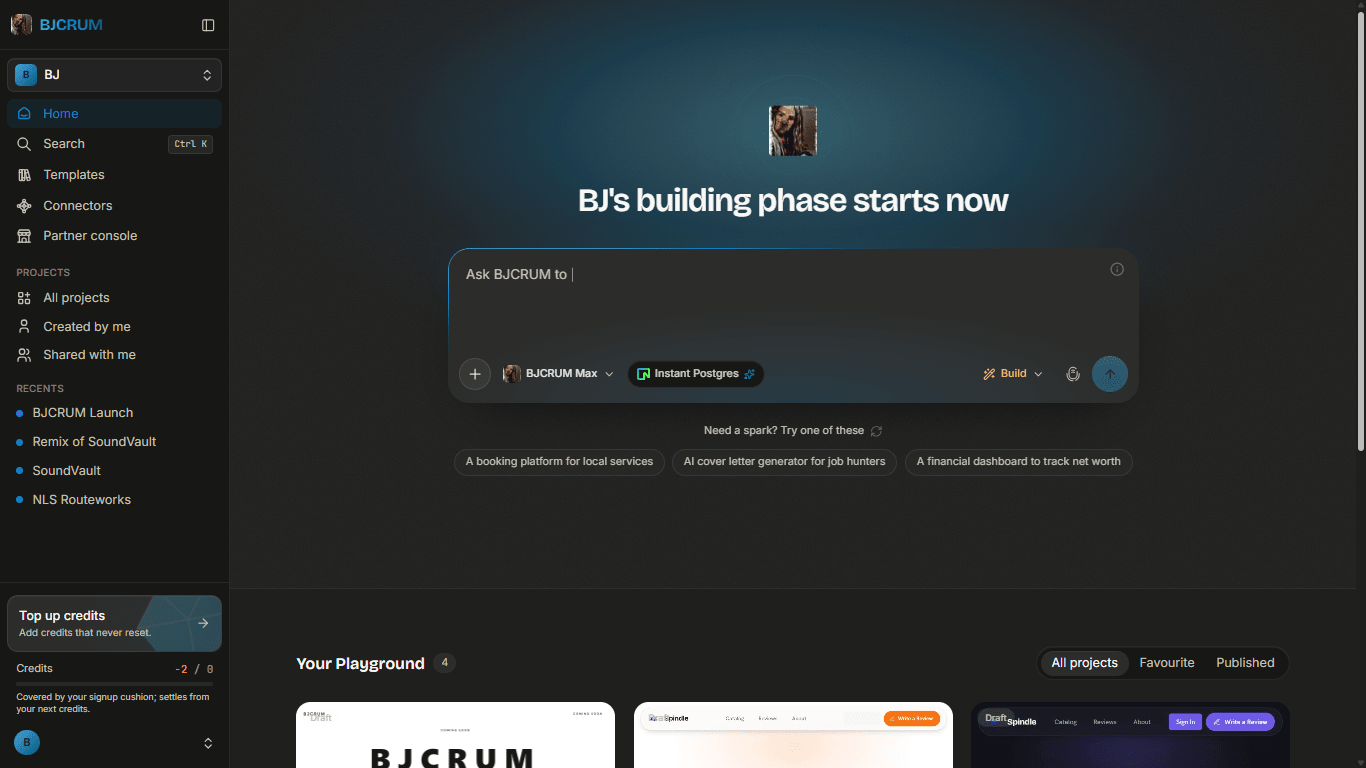
From here, you can describe the product you want BJCRUM to create.
You can build things like:
- Business websites
- SaaS applications
- Customer portals
- Internal tools
- Dashboards
- Marketplaces
- Booking platforms
- AI-powered applications
- Custom web applications
You don't need to create files, configure a development environment, or choose a technical architecture before getting started.
Describe what you want to build
Enter a description of your project into the prompt box.
For example:
Build a world-class construction website. The website should have all the navigations a construction website should have. Use professional and very clean images.
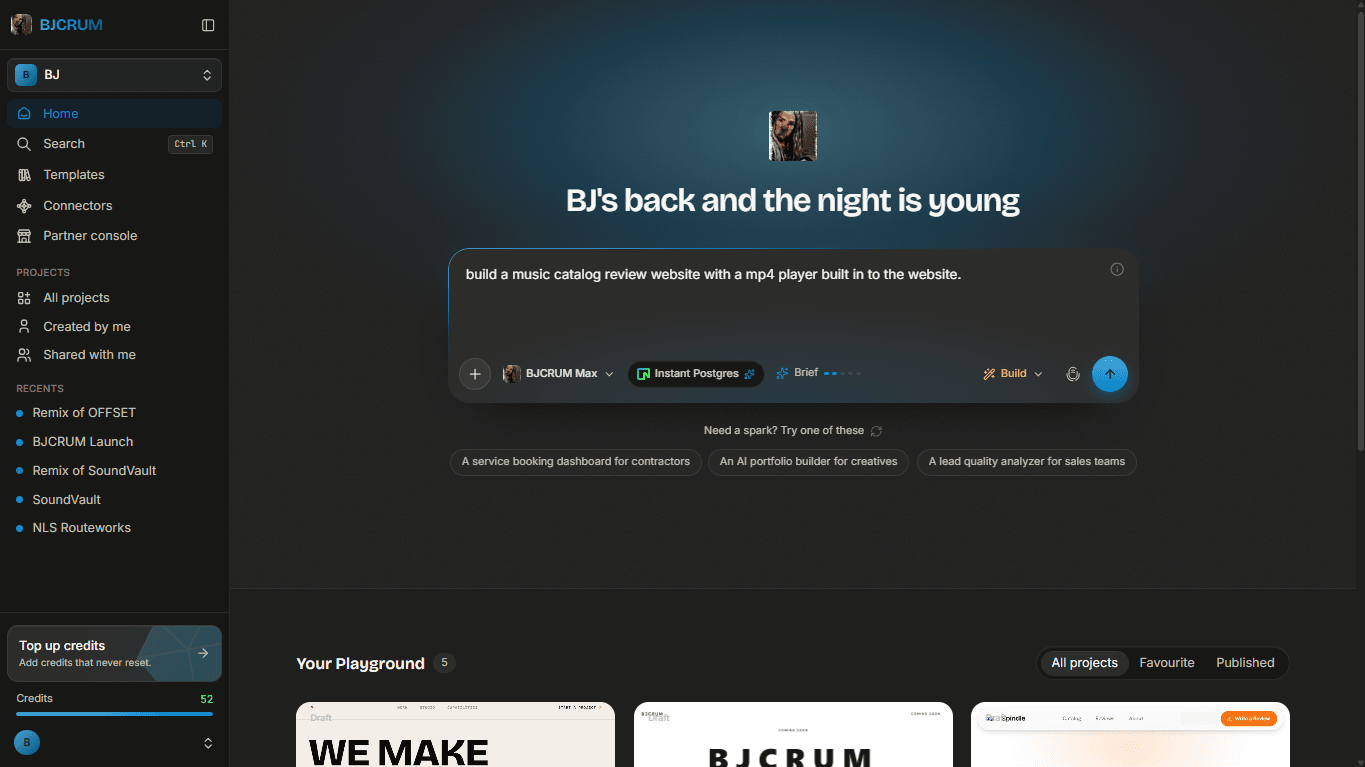
BJCRUM uses your description to understand the product you want to create and determine how to approach the build.
Choose your AI model
Before starting the project, you can choose the BJCRUM model you want to work with.
Depending on your account and available options, you'll see BJCRUM's model selector beside the prompt box.
Different models are designed for different levels of speed and reasoning.
For most projects, you can start with the default selection.
Choose Build or Plan
You can also choose how BJCRUM should approach your request.
Build is designed for when you want BJCRUM to move from your request into implementation.
Plan is useful when you want BJCRUM to structure and review the approach before building.
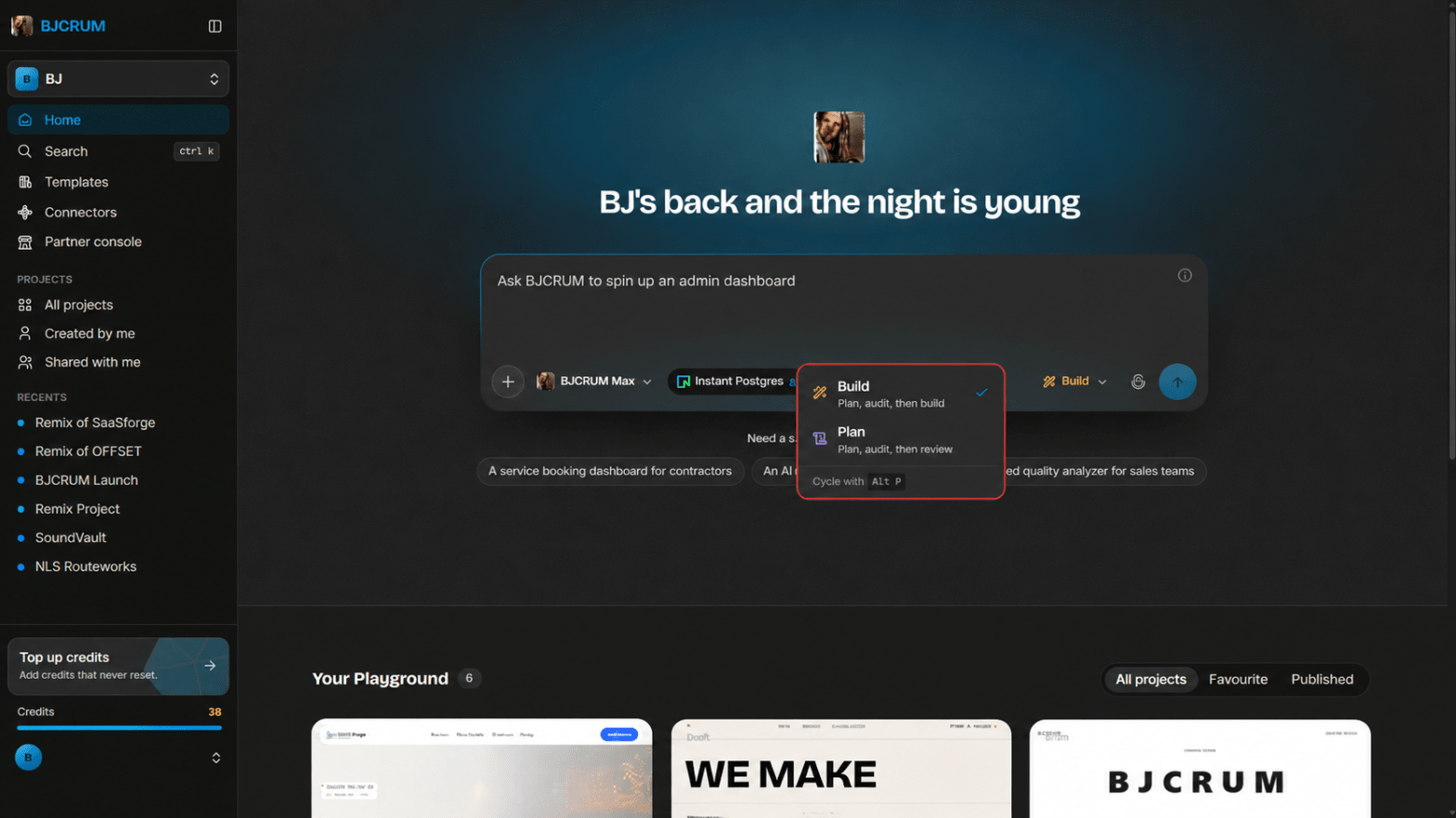
For your first project, you can leave Build selected.
Start the project
Once you're happy with your prompt, click the arrow button to submit it.
BJCRUM will create the project and begin working on your request.
Depending on the complexity of what you're building, BJCRUM may analyze requirements, create or modify files, set up functionality, and prepare the application for preview.
You can follow the progress from inside the project workspace.
Your project workspace
Once your project is created, BJCRUM opens the project workspace.
This is where you'll continue working with BJCRUM.
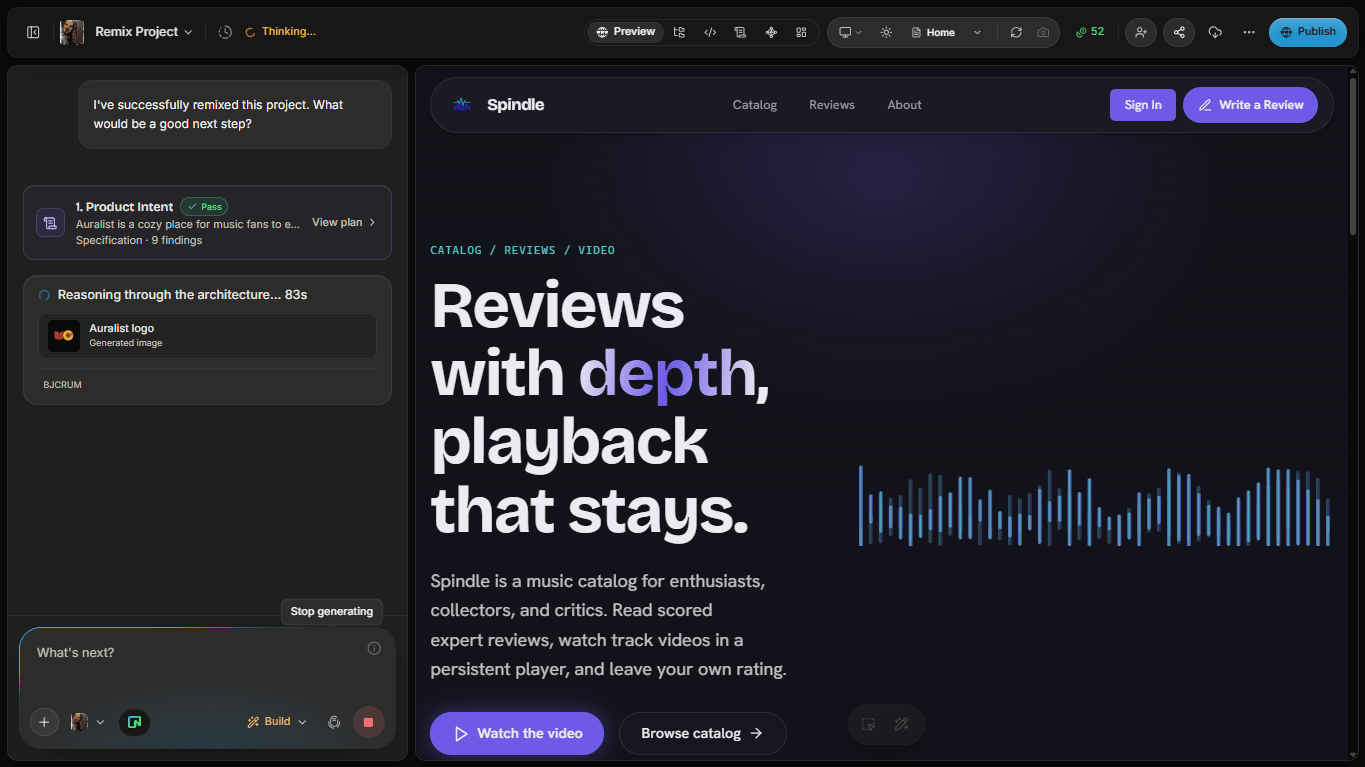
From here, you can:
- Preview your application
- Continue chatting with BJCRUM
- Request changes
- Add features
- Review generated work
- Work with your project files
- Test your application
- Publish when you're ready
You don't need to create a new project every time you want to change something.
Continue working inside the existing project and tell BJCRUM what you want to do next.
Keep building
Your initial project is only the starting point.
After BJCRUM creates the first version, you might say:
Add a page showing our completed construction projects.
Then:
Add a quote request form to the Contact page.
Then:
Create an admin dashboard where we can manage quote requests.
Each request continues evolving the same application.
Next: Your first prompt
You've created your first project. Next, learn what information to include in your first prompt so BJCRUM can better understand what you want to build.