 BJCRUM
Understanding the Interface
Tour the BJCRUM workspace, the chat area, preview, connectors, and settings you'll use to build, review, and manage your project.
The BJCRUM interface brings everything you need to build, preview, manage, and publish your application into one workspace.
This guide introduces the main areas you'll use while working on a project.
The BJCRUM dashboard
When you sign in to BJCRUM, you'll arrive at your dashboard.
This is where you can start a new project, access existing projects, and continue working on applications you've already created.
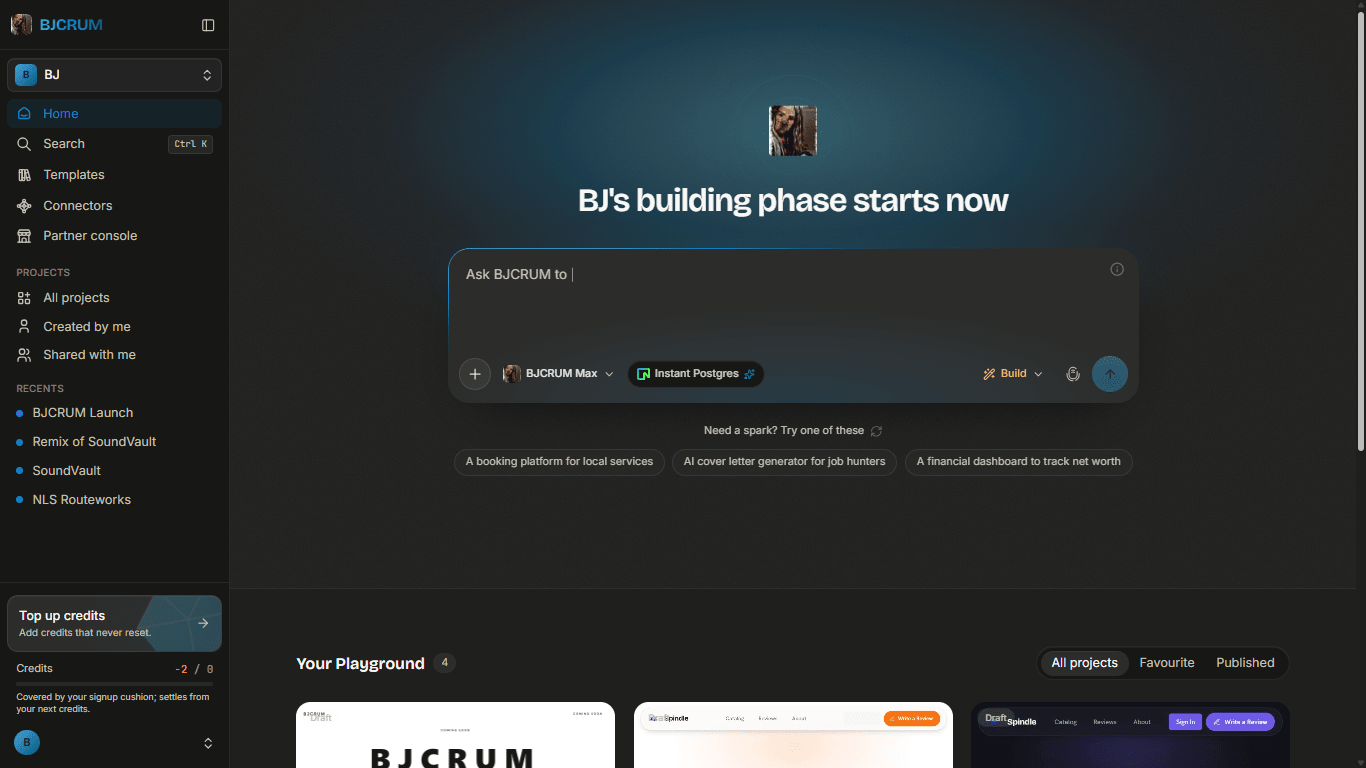
The prompt box is the fastest way to start something new.
Simply describe what you want to build and submit your prompt.
The project workspace
After creating or opening a project, you'll enter the BJCRUM project workspace.
This is where most of your building happens.

The workspace is designed to let you communicate with BJCRUM while seeing the application you're building.
As BJCRUM makes changes, you can review the result and continue giving instructions without leaving the project.
Chat with your AI product team
The conversation area is where you work with BJCRUM.
You can use it to request new features, make changes, fix problems, or ask BJCRUM to improve something it has already created.
For example:
Change the hero section to use a darker background and make the headline more prominent.
Or:
Add a project gallery with filters for residential and commercial projects.
Or:
Add a contact form that saves enquiries to the database.
You don't need to create a new project for each request. Continue the conversation inside your existing project.
Build and Plan
Near the prompt area, you can choose how BJCRUM should approach your request.
Build is used when you want BJCRUM to implement your request.
Plan is used when you want BJCRUM to think through and structure the work before implementation.
BJCRUM Min and BJCRUM Max
BJCRUM also lets you choose between different levels of AI reasoning for your work.
BJCRUM Min is designed for faster work and straightforward tasks.
BJCRUM Max is designed for tasks that benefit from deeper reasoning and more complex problem solving.
For example, a simple text or design change may not require the same level of reasoning as architecting a multi-user SaaS application.
Preview your application
The preview lets you see what BJCRUM is building.
Instead of waiting until the end of development, you can inspect your application as it evolves.
Use the preview to check things such as:
- Page layout
- Navigation
- Content
- Responsive behavior
- Forms and interactions
- Application workflows
If something isn't how you want it, return to the conversation and tell BJCRUM what you'd like changed.
This creates a simple loop:
Request → Build → Preview → Improve
Working with your project
Your project contains the files and application structure BJCRUM creates as it builds.
Depending on the workspace view and available tools, you can inspect the project while continuing to work with BJCRUM.
For most users, you don't need to manually edit files to build successfully.
You can simply describe the changes you want.
Developers, however, can use the additional project controls when they want more visibility into the underlying application.
Connectors
Connectors allow your application to work with external services.
Depending on what you're building, you may connect services for things like:
- Payments
- SMS
- AI models
- File and image storage
- Calendars
- Other external services
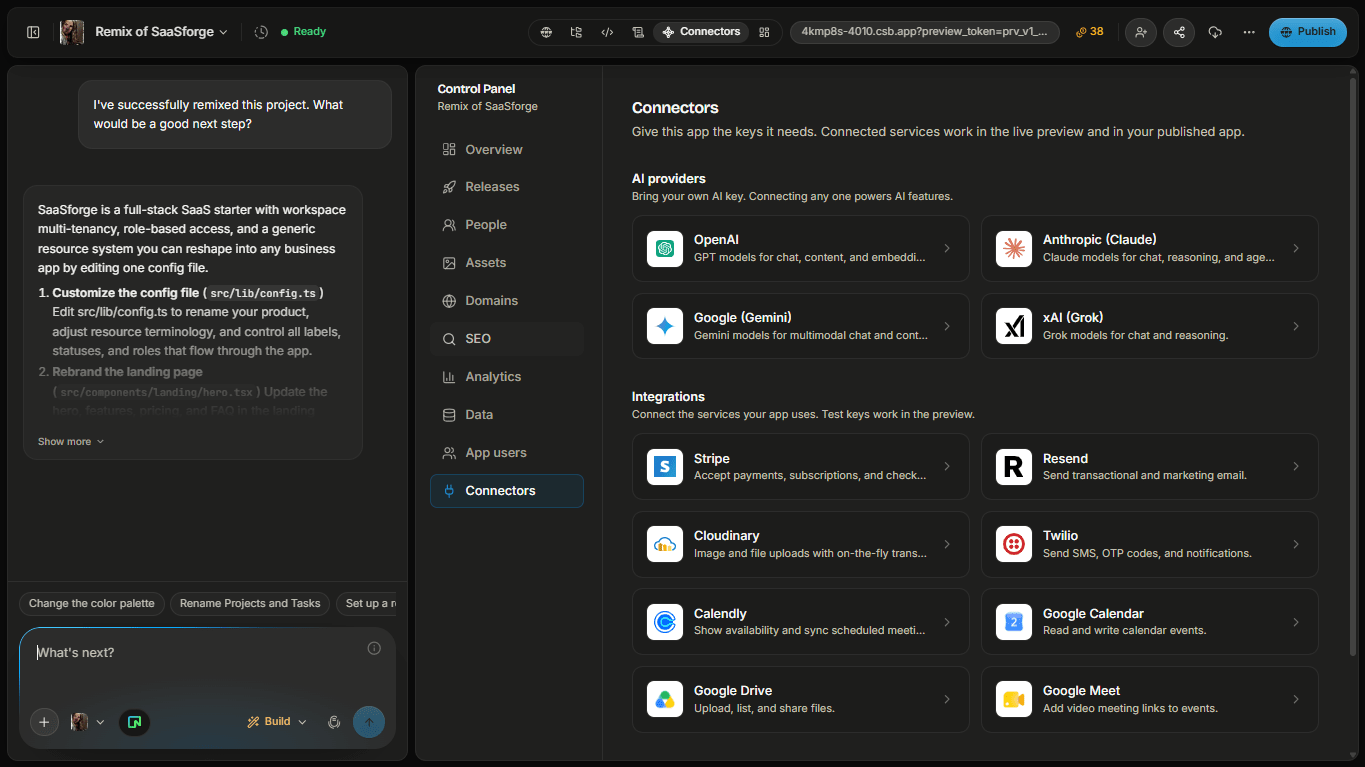
For example, if your application needs payments, you can connect Stripe and then ask BJCRUM to build the required payment experience.
Project settings
Your project settings give you access to configuration and management options for the current application.
[INSERT SCREENSHOT: BJCRUM project settings]
The available settings may include options related to your project, connected services, deployment, and other project-level configuration.
You generally won't need to change these settings when creating your first application.
Publish
When your application is ready, the Publish control takes it from your workspace to a live environment.
Publishing gives you a live version of the application that can be accessed outside BJCRUM.
We won't publish just yet, that's what we'll do on the next page.
You don't need to learn everything at once
The BJCRUM workspace contains tools for simple websites as well as more sophisticated applications.
You don't need to understand every control before you start.
For your first project, remember these four things:
Prompt
Tell BJCRUM what you want to create or change.
Build
Let BJCRUM work on your application.
Preview
Review and interact with what BJCRUM created.
Continue
Give BJCRUM your next instruction and keep improving the product.
As you build more advanced applications, the rest of the interface will become increasingly useful.
Next: Publish your first project
You've created a project, written your first prompt, and learned your way around the BJCRUM workspace.
Next, let's put your application online with Publish Your First Project.